
If your gate is not updating with new customer codes, the ESS Gate Sync program may have stopped running. This often happens after a Windows update or if a firewall blocks the service.
How to Check if the Sync is Broken
Click the Setup tab and select Gate.
Look at the log. If you see a Red X or the "Checked for change" message does not appear every 5 minutes, the sync has stopped.


How to Restart the Service
You can restart the sync program using the Windows Services menu:
Type Services into your Windows search bar and click the app with the Gear Icon.
Find ESS Gate Sync Service in the list.
Right-click the name and select Restart. (If it is not running at all, click Start).
How to Help the Service Restart Automatically
To help prevent this problem in the future, you can tell Windows to try restarting the service if it ever fails:
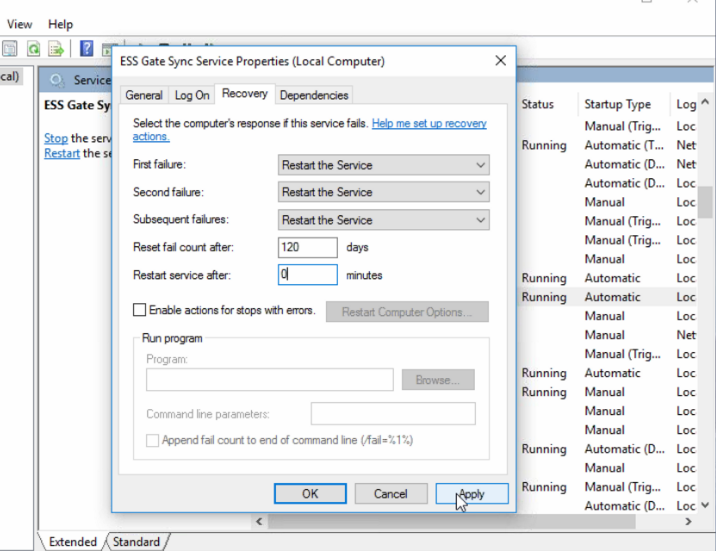
Right-click ESS Gate Sync Service in the Services menu and select Properties.
Click the Recovery tab.
Set First failure, Second failure, and Subsequent failures all to Restart the Service.
Click Save.
Fixing Permission Errors
If you get an error saying you do not have permission to start the service, follow these steps:
Open the Properties window for the ESS Gate Sync Service again.
Click the Log On tab.
Select this account and browse for the computer's Administrator account name.
Enter the password you use to log in to that computer and click Save.
Click Retry on the error box.
Your computer must stay turned on 24/7 for the gate to sync correctly. You can use a screensaver, but do not let the computer "Sleep" or "Hibernate."