
To print labels for specific customers, follow the steps below. If you want to print labels for just people in the print batch, click here.
1. Log in to your account.
2. Hover over the Email, Txt, & Print tab.
3. Click the Mailing Labels sub-tab.

4. Make sure you are printing labels for the correct "Customer Type" by selecting from the drop-down menu listing "All" clients, "Current" clients, "Past Due" clients, or "Locked Out" clients.

5. Select which customers you would like to print labels for by checking the box next to each customer's name.
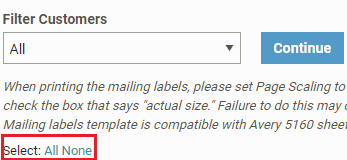
6. To select all customers in a particular Customer Type, click on All.
7. Click the Download PDF button.

When printing the mailing labels, please set Page Scaling to 'None.' If you are using Google Chrome, you may need to uncheck the "fit to page" option in the print dialog, or choose the “custom” scale and enter 105. If you are using Internet Explorer, you will need to check the box that says "actual size." Failure to do this may cause your labels not to print correctly.