
Custom fields can be used to customize data in tenant documents and the questions asked to potential tenants who rent online. For example, you may want to ask agreement questions such as, "What is the license plate number of the vehicle you plan to store?"
If you delete a custom field, all information that was captured via the custom field will be deleted from the customer's accounts as well.
To create customer fields:
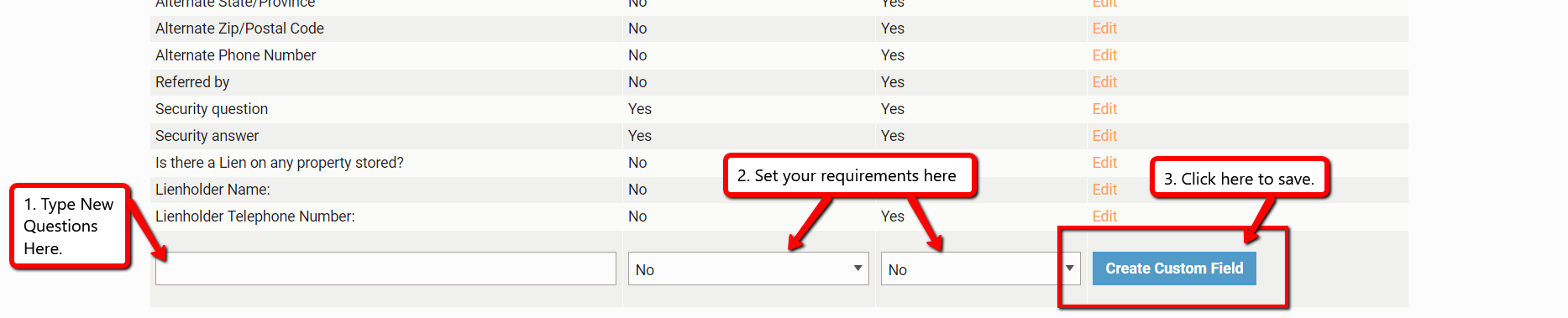
1. Hover over the Customers tab and select Field Settings.

2. The Field Name can be a question or something simple like "Employer's Name." You can require fields or leave them as optional "show" fields. To change whether or not a field is required, click the Edit to the right of the line item.

3. Add new fields at the bottom of the screen.
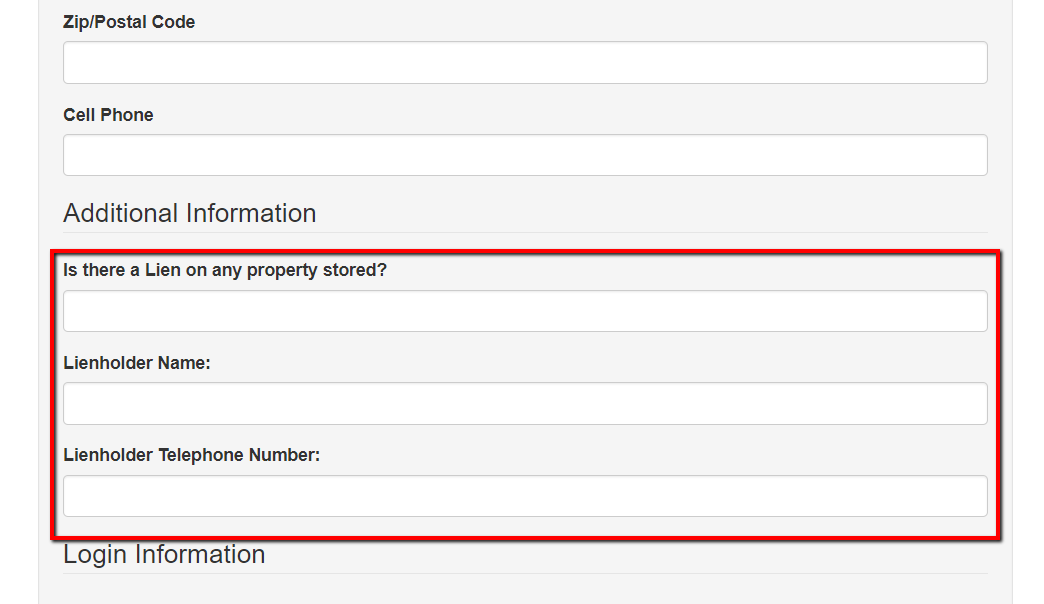
 When the customer rents online, the new field will appear under Additional Information:
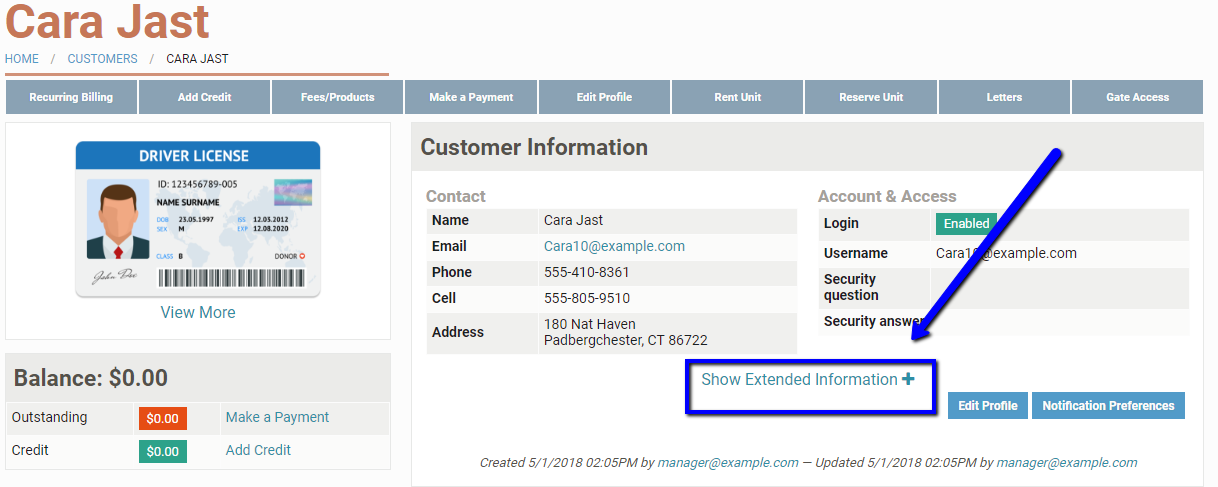
  4. You as an owner or manager can access the customer's answer in the Customer Information section of the customer's page by clicking Show Extended Information.
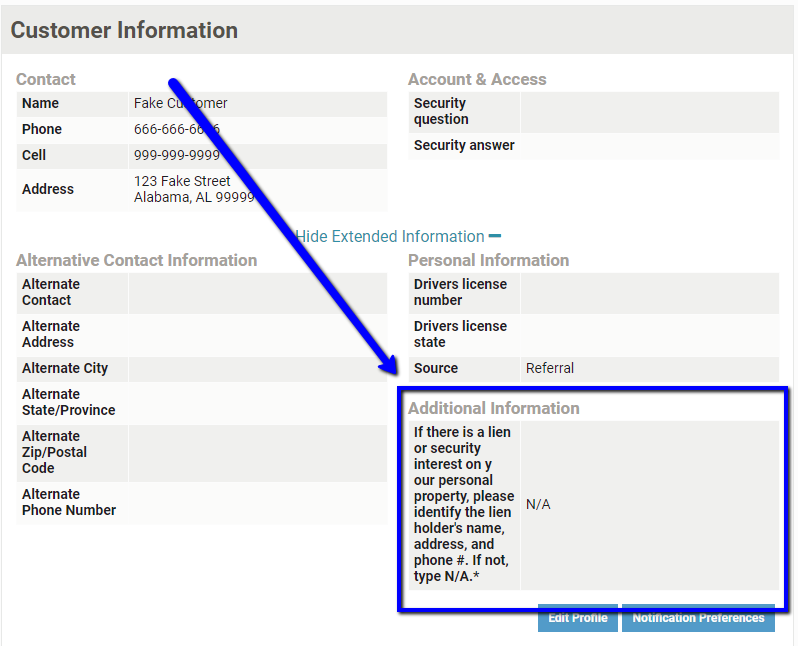
 Their answers will be found under the Additional Information section.
 If you ever need to update the tenant's answers or add them later, you can do so by clicking Edit Profile at the top of the customer screen. In the "Additional Information" section, you will see a field for your customer questions. You can change the answers, and "Update" at the bottom of the screen to save any changes.