
Our software can automatically send Invoice Reminders via email or text message to the customer up to 20 days before the customer's upcoming due date.
Enable and edit the Invoice Reminder template
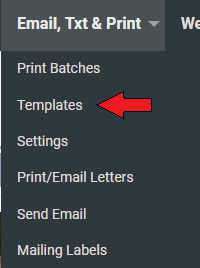
1. Hover over the Email Text & Print tab and click Templates.
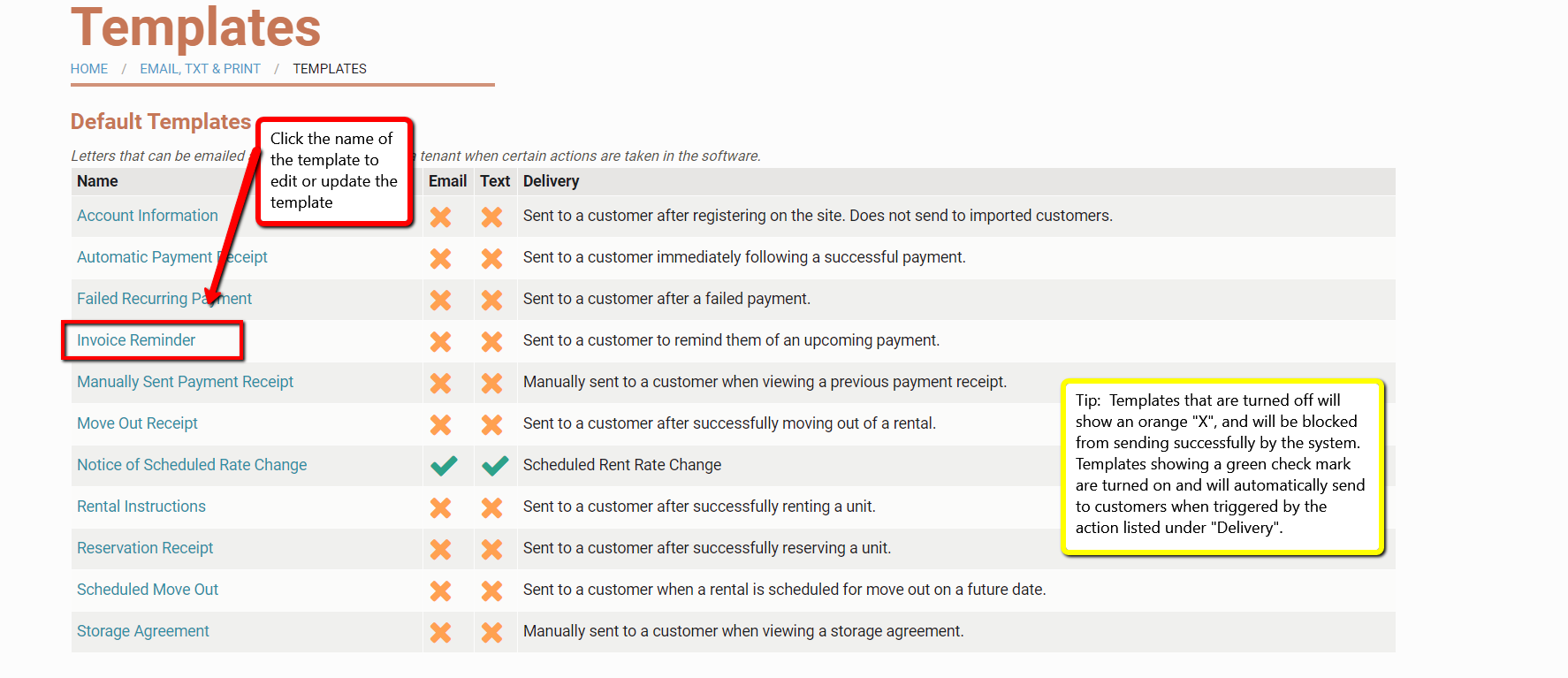
 2. Click Invoice Reminder from the list of templates.
  3. Check Email Enabled and/ or Text Enabled to enable the templates.
4. You can change the content of the templates from the Email Content and Text Message Context fields. You can use Placeholders to personalize each message that is sent from this template.
If any changes or edits are made to the template after customers have been invoiced, those changes or edits will not appear in the notification until the next month's reminder.
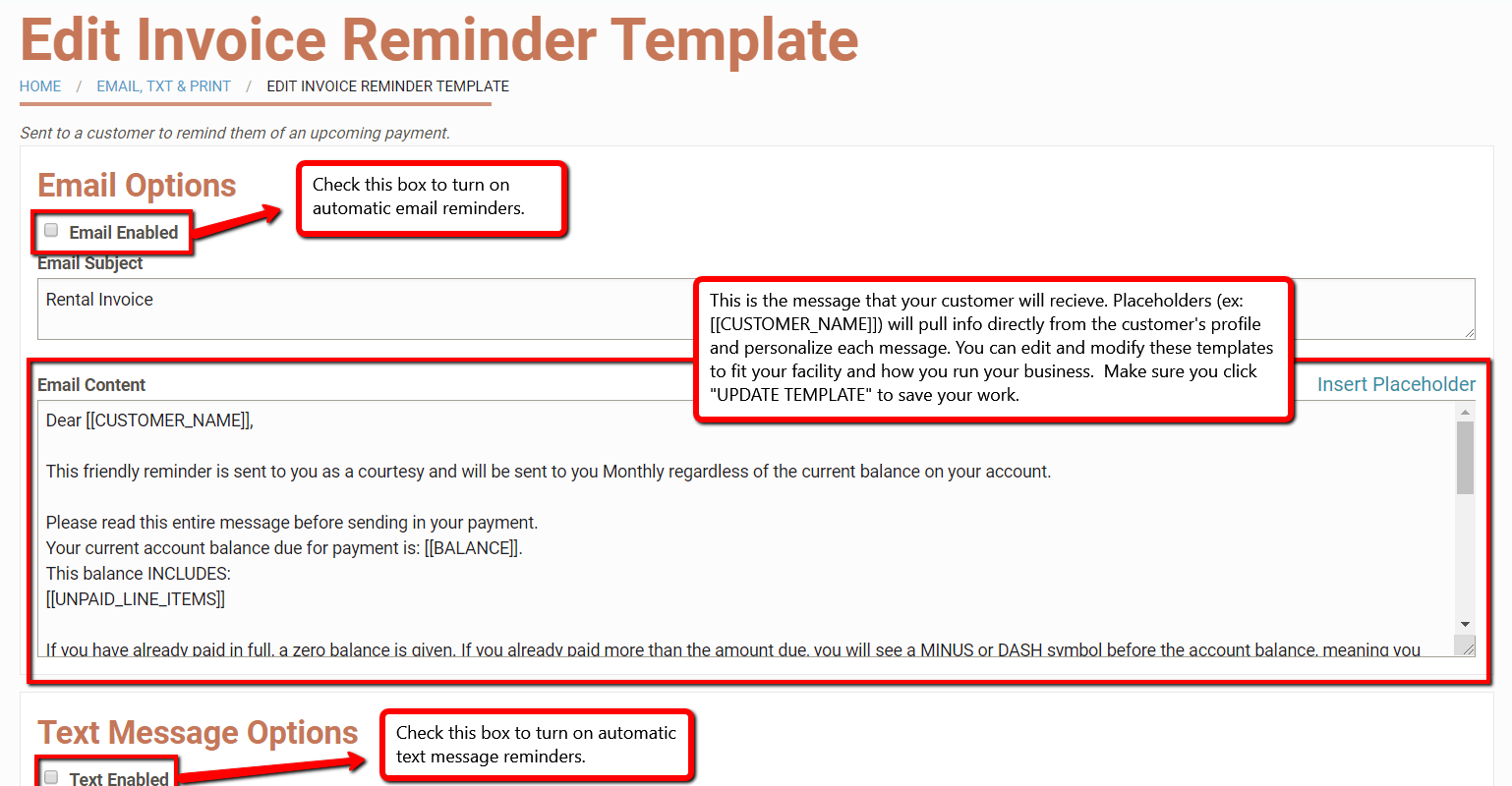
4. Click Update Template to save any changes that you have made. Please note: If any of your tenants have U.K. phone numbers, they will be unable to receive text messages sent from U.S. numbers. Due to policy changes implemented by U.K.-based mobile carriers on June 1, 2023, text messages originating outside the U.K. will be blocked.
Billing Period Settings
Next, set when the invoice should be created.
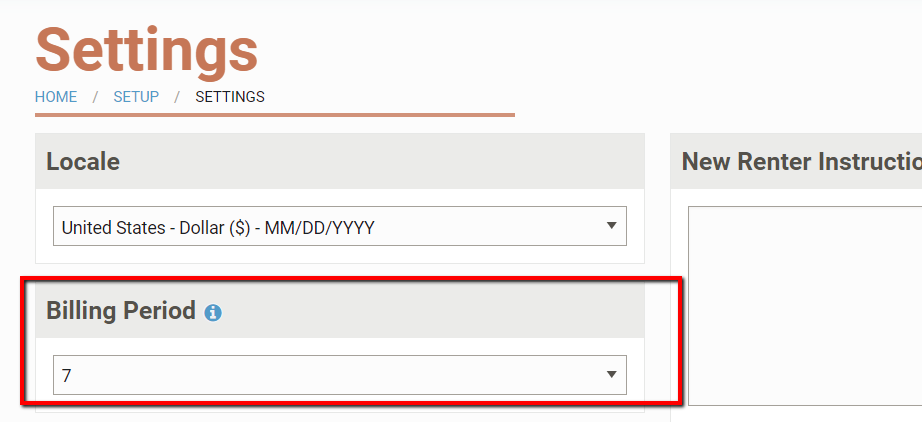
1. Hover over the Setup tab and click Settings.
2. Select the Billing Period you would like. The Billing Period specifies how many days before the customer's due date an invoice will be generated. You can choose from 1 day to 20 days before the customer's due date.
If a customer is due on the 1st, a 7-day billing period will create their invoice on the 24th of the preceding month, if it is a 30-day month, the 25th if it is a 31-day month, or the 22nd of February for the March 1st billing cycle. Once the invoice is created, it is visible in the customer's billing history, but it does not tell the system when to send the email or text message. We need to move into our email settings to set that up next.
Reminder Settings
Lastly, set when reminders should be sent to customers.
1. Hover over the Email Text and Print tab and click Settings.
2. Select a Reminder period from the dropdown menu. The reminder period specifies when the system should send the email or text reminder notifying customers about their upcoming payment.
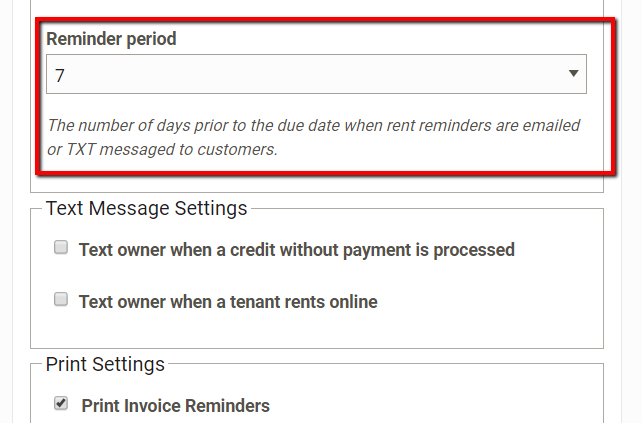
Once you have set these settings, the invoice reminders are configured, and they will automatically send to the customer according to the rule you set in the billing and reminder settings. You will not need to do anything else to trigger the reminder.