
Follow the instructions below to refund a Security Deposit after a tenant moves out.
Please note: If a deposit was not paid via ACH or Credit Card in the software, a check or cash will have to be used to return the deposit.
1. During the Move Out process, you will be asked: "This tenant has paid $XX.00 out of $XX.00 deposit for this unit. How much of this deposit amount would you like to refund?"
The deposit reporting will be updated with this amount; however, the refund method will be entered in a separate step.
2. Return to the Customer page and open the customer's Full Billing History.
3. Find the line item for their Security Deposit. Click on the date next to this payment.
4. In the upper right-hand corner, click Refund.
On the next page, you can confirm the amount to be refunded to the customer. If they paid more than just the deposit with this payment, there is a list of all the line items paid. Click the word Refund next to the deposit in the list. The amount should automatically update to reflect the correct deposit amount going back to the customer.
A reason will be required; make sure you include something like "Refunding Deposit".
5. Mass Void Unpaid Line Items (to zero out the balance).
Go back to the Customer's page and scroll down to the bottom of the Billing History. Click Mass Void Unpaid Line Items.
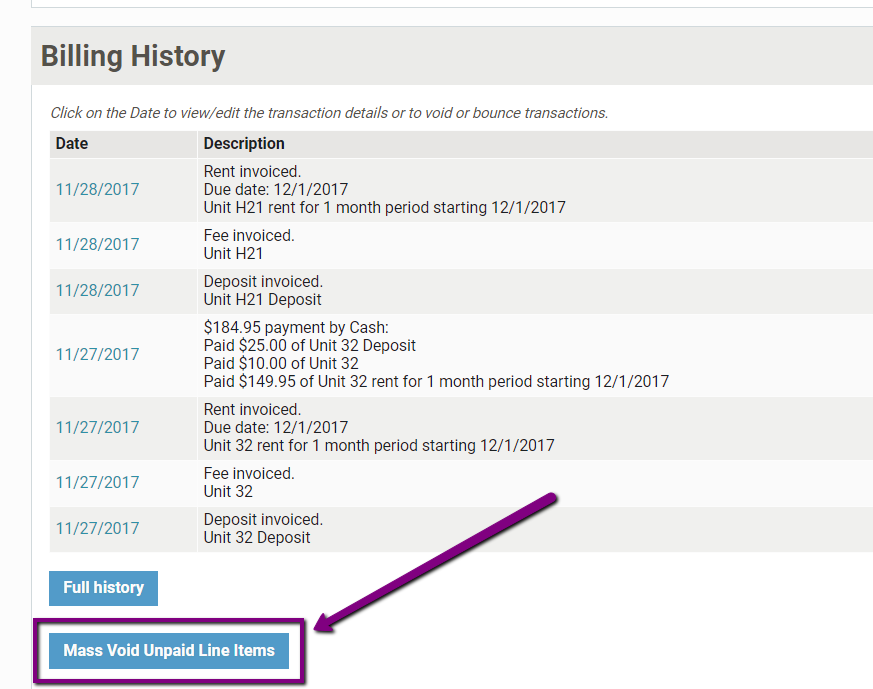
If you wish to cancel all outstanding charges, click All and Void Selected Line Items.